Owed
See money still to come in.
SoleBooks help guide
SoleBooks is built for busy tradespeople. Add your customer, make a quote or invoice, scan a receipt and send documents from your phone.
01
Open SoleBooks for the first time and enter your business name, your name and your address. These details are used on the documents you send to customers.
02
Every quote and invoice needs a customer. When you create a quote or invoice, choose an existing customer from the list. If they are new, tap New Customer, add their details, then carry on with the document.
Tap New Quote or New Invoice.
Choose a customer, or tap New Customer.
Add the work, price and VAT rate if it applies to your business.
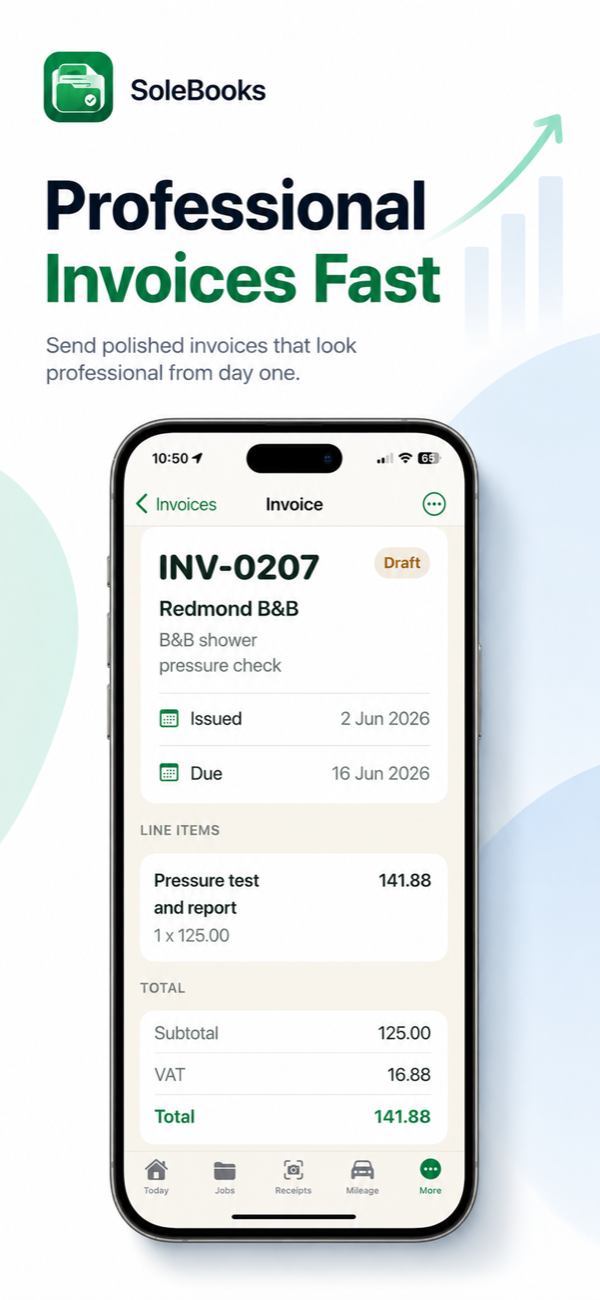
03
Use a quote when you are pricing work. Use an invoice when it is time to ask for payment. Add your line items, check the total and save.
Price the work before you start.
Ask for payment when the work is complete.
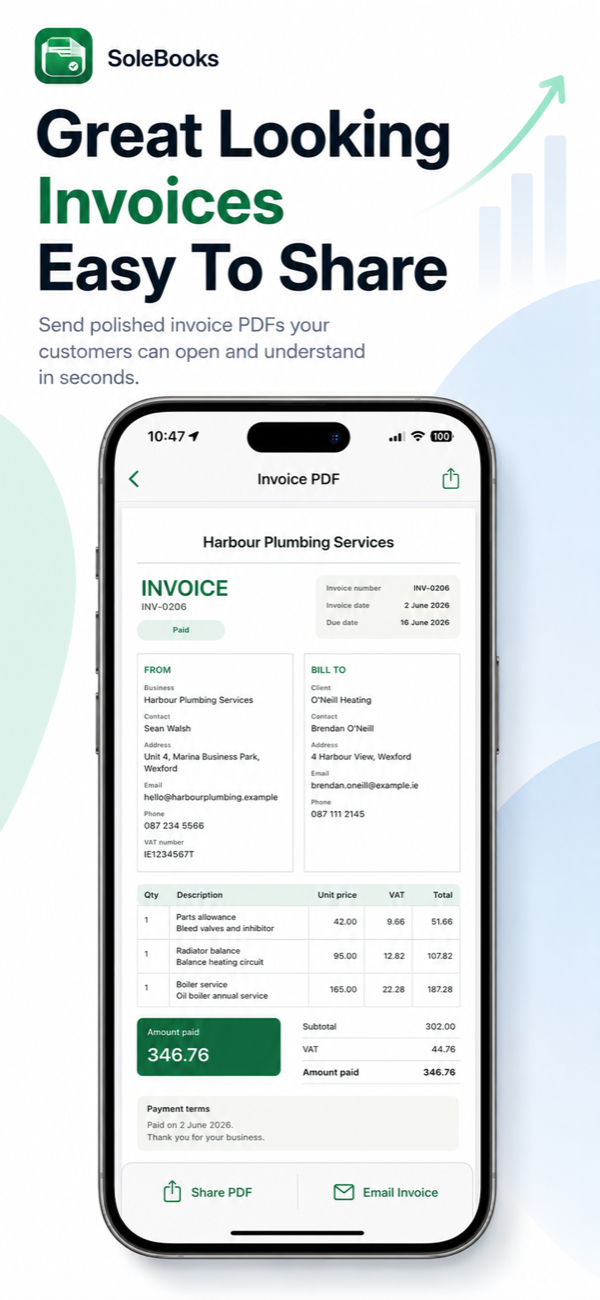
Send the finished PDF from your phone.
04
Open a saved quote or invoice and choose Send Quote PDF or Send Invoice PDF. Your iPhone’s Share Sheet opens so you can choose Mail, WhatsApp or another compatible app installed on your phone.
The choices shown depend on the apps you have installed and signed in to.
05
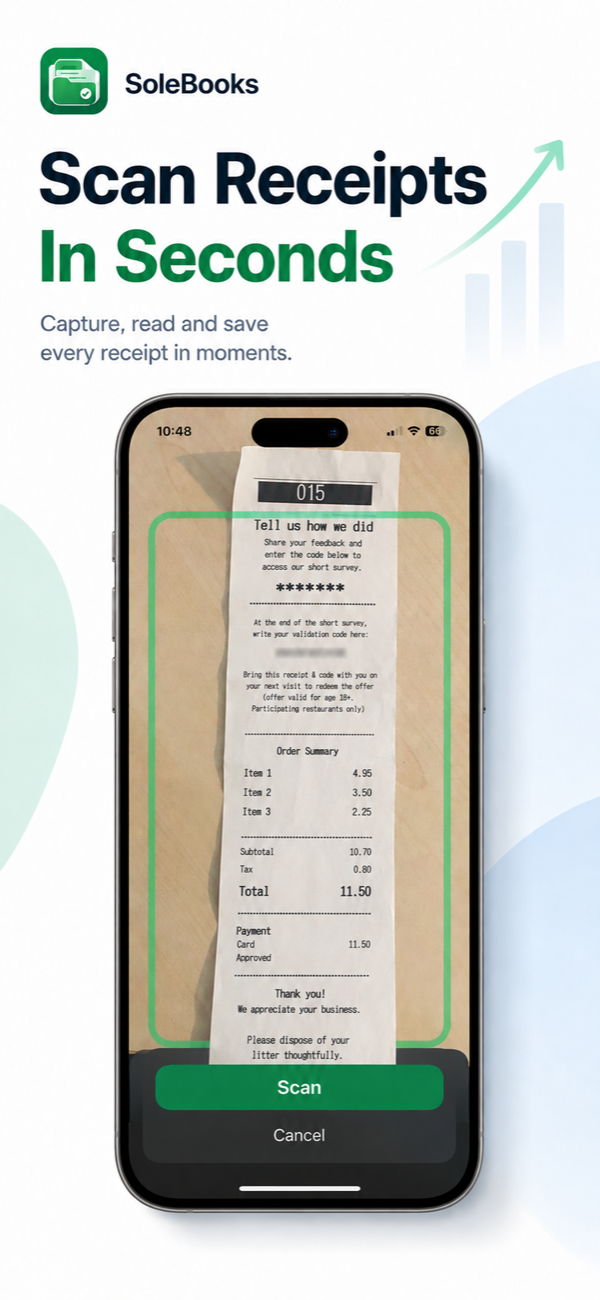
Tap Scan Receipt from the Receipts tab. Hold the receipt inside the frame and tap Scan. The receipt is saved with your business records after you review it.
Keep the receipt inside the green frame.
Check the supplier and overall total shown after the scan.
Use the green pencil to correct either field, then approve and save.
06
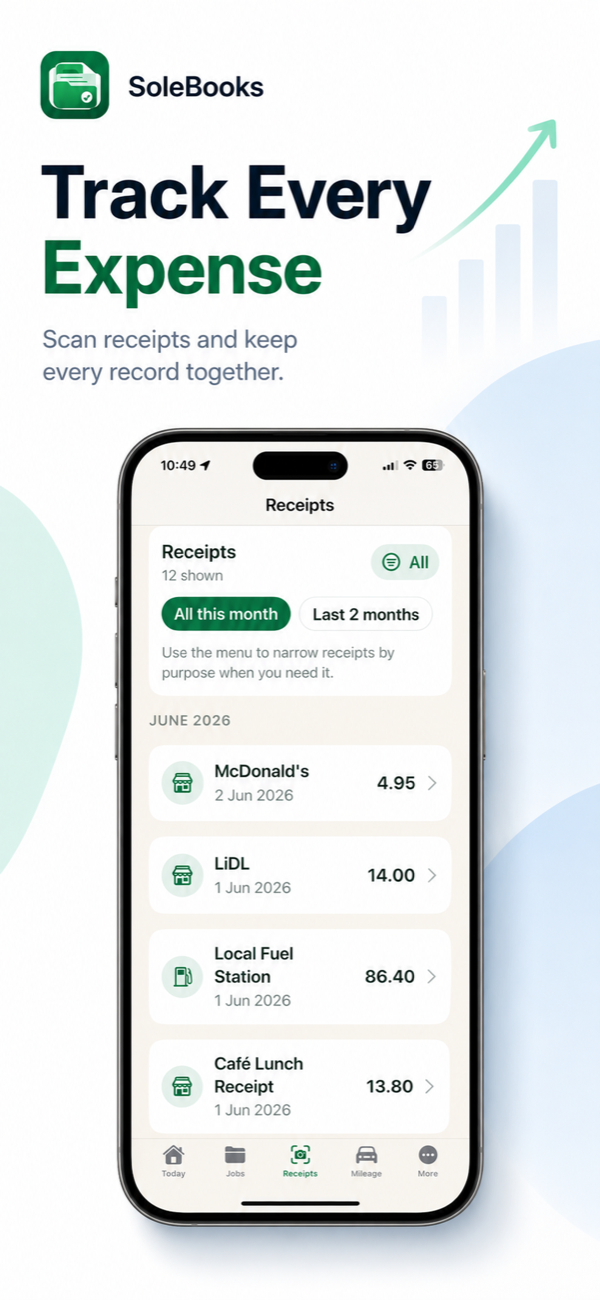
Your saved receipts sit in the Receipts tab. Use the date buttons and category filter to narrow the list when you need to check a purchase, prepare records or export information.
07
The Today screen gives you a quick view of money owed, quotes, invoices and receipts. If your business is VAT registered, it also shows a VAT estimate for the period you choose.
See money still to come in.
See invoices marked as paid.
Keep an eye on business spending.
Review the estimate when VAT is turned on.
Still stuck?
Tell us what you are trying to do and what you see on screen. We will help you get moving again.